Uizard Review 2026: AI UI Design Tool for Rapid Prototyping

As this Uizard review shows, every product idea eventually runs into the same wall: someone needs to see what it looks like before anyone can move forward. Designers are busy, Figma has a steep learning curve, and waiting days for a wireframe to communicate a concept is a bottleneck that slows down product teams, startup founders, and marketers alike.
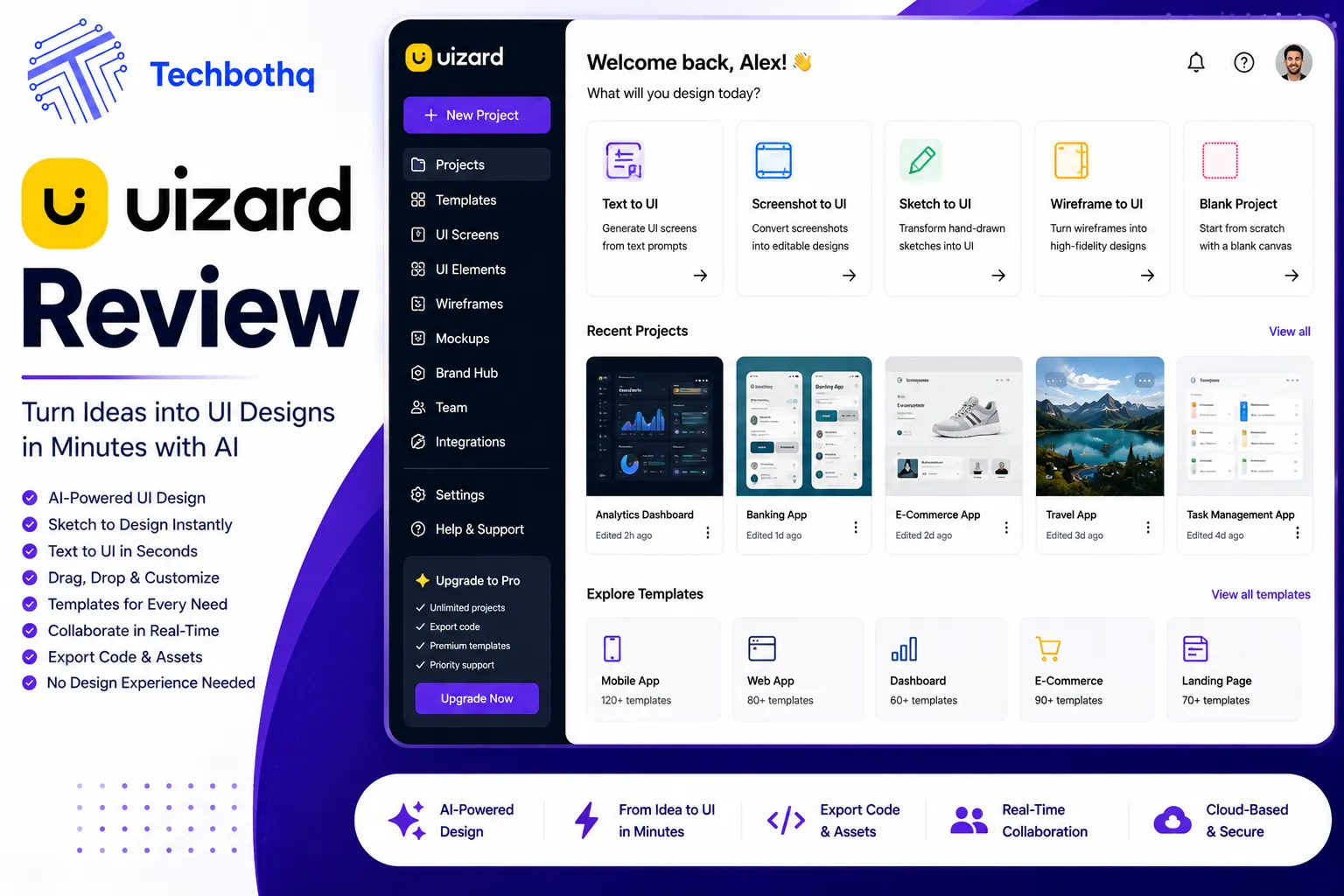
In this Uizard review, uizard was built specifically to break that bottleneck. Type a description of your app in plain English, upload a hand-drawn sketch from a napkin, or paste in a screenshot of an existing interface — and within seconds, Uizard generates a multi-screen, editable UI prototype you can click through, present to stakeholders, and iterate on immediately. No design background required.
Looking at Uizard review details, in 2026, following its acquisition by Miro Labs in 2024 and the launch of Autodesigner 2.0, Uizard has matured into one of the most capable AI-native design tools in the rapid prototyping space. This review covers everything: what it does, how well it does it, who it’s actually built for, and where its real limits are.
Table of Contents
What Is Uizard?
Platform Overview
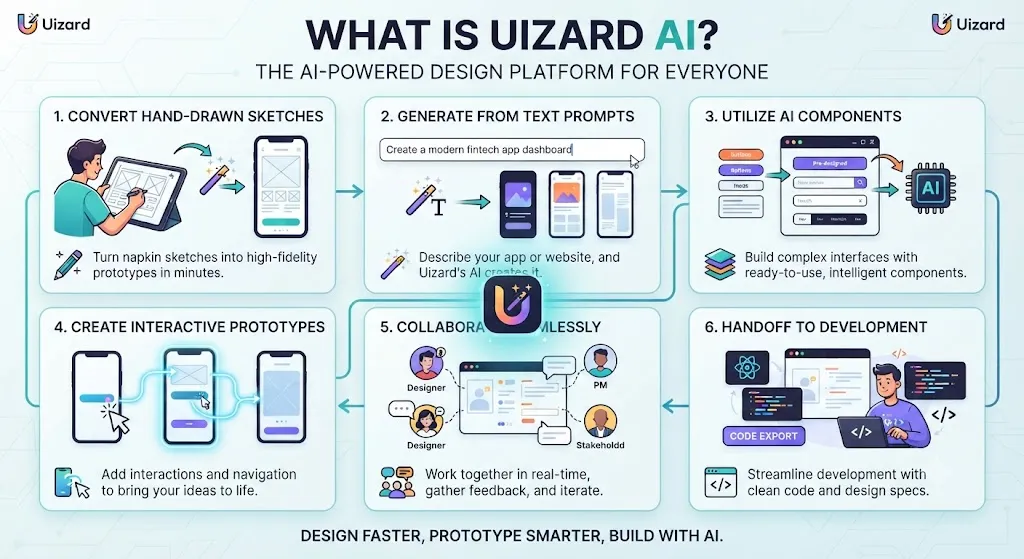
When it comes to this tool, this Uizard review found that uizard is a browser-based AI design platform that generates wireframes, mockups, and clickable prototypes from text prompts, hand-drawn sketches, and screenshots of existing apps or websites. It was founded in 2018, making it one of the earliest AI-powered design tools on the market, and was acquired by Miro Labs in May 2024 — a move that has significantly expanded its AI capabilities and product roadmap.
For anyone reading this Uizard review, the platform’s core promise is democratizing UI design: making it possible for anyone — product managers, startup founders, marketers, developers, entrepreneurs — to go from a concept to a visual prototype in minutes without needing design expertise or familiarity with professional tools like Figma or Sketch.
This Uizard review found that uizard’s headline feature is Autodesigner 2.0, which interprets natural language descriptions and generates complete multi-screen UI designs from a single prompt. You can describe an app concept like “a fitness tracking app with a dashboard, workout log, and profile page” and receive a complete, high-fidelity multi-screen design within seconds. The designs are fully editable using Uizard’s drag-and-drop interface, allowing you to refine layouts, swap components, adjust colors and typography, and add interactive flows.
Across this Uizard review, beyond Autodesigner, the platform includes a screenshot-to-design scanner, a hand-drawn sketch converter, a wireframe mode, team collaboration features, a developer handoff tool, and a library of over 1,500 UI templates and components. It operates entirely in the browser with no installation required.
On this point, this Uizard review notes that pricing starts at free (with significant limitations) and scales to $12/month for Pro and $39/month for Business — making it one of the most affordable paths from idea to interactive prototype in the current market.
Target Users
Uizard is designed for:
- Within this Uizard review, product managers who need to communicate UI concepts to engineering teams and stakeholders without waiting for a designer Considering the data, this Uizard review shows – Startup founders and entrepreneurs who need to visualize and validate product ideas quickly before committing to development In the context of pricing, this Uizard review notes – Marketers who need landing page or feature mockups for campaigns, presentations, or client pitches
- Per this Uizard review, non-designers at any level who need professional-looking UI without the learning curve of Figma or Sketch
- As this Uizard review shows, junior designers using AI assistance to accelerate early-stage ideation before moving into production tools
- In this Uizard review, uX researchers who need low-to-medium fidelity wireframes for user testing without hours of manual construction
Looking at Uizard review details, uizard is not designed for senior designers doing pixel-perfect production work, teams requiring deep design system management, or developers who need production-ready code output. For those use cases, Figma, Framer, or UXPin are better fits.
Love What These AI Design Tools Can Do?
Great AI-generated visuals still need a cohesive brand identity holding them together. Let Tasknestly build your full branding — logo, guidelines, and visual system.
Explore Branding Services →Key Features
Text-to-UI Generation (Autodesigner 2.0)
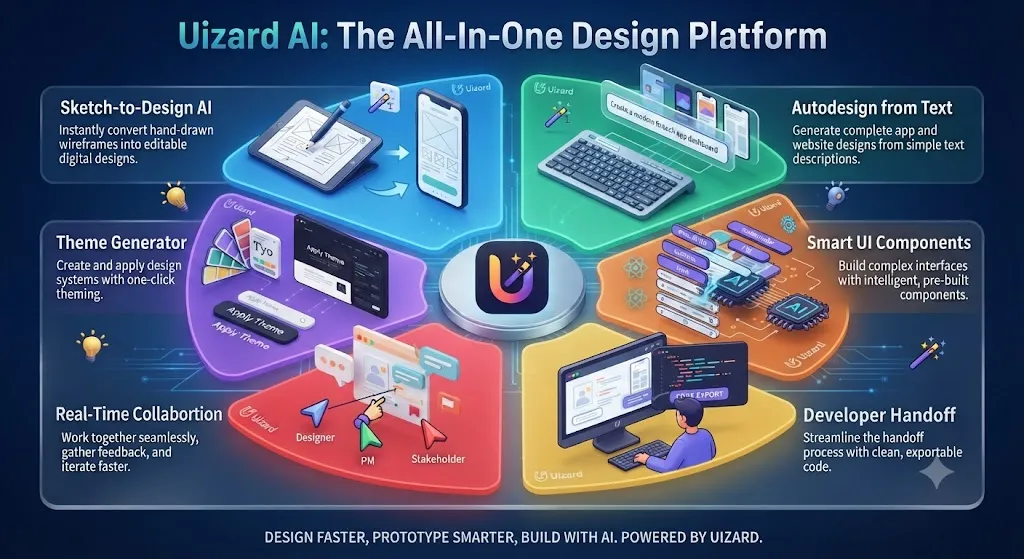
When it comes to this tool, this Uizard review found that autodesigner 2.0 is Uizard’s flagship feature and the one that separates it most clearly from conventional design tools. It takes a plain-language description of an app or website and generates a complete, multi-screen UI design in seconds.
For anyone reading this Uizard review, the workflow is straightforward: you choose your device target (mobile, tablet, or web), write a description of what you want to create, optionally specify a style direction using keywords or reference screenshots, and Autodesigner generates the screens. The output includes proper UI components — navigation bars, cards, buttons, forms, headers — structured into logical screen flows.
This Uizard review found that autodesigner 2.0, available on Pro and Business plans, produces significantly better output than the Autodesigner 1.5 version included in the free tier. The 2.0 model handles more complex multi-screen apps, maintains greater consistency across screens, and responds better to style direction input. Users on the free plan who’ve only experienced the 1.5 model are often surprised by the quality jump when they upgrade.
Across this Uizard review, the component-level iteration feature is particularly notable: you can select any individual component in a generated design, describe the change you want in plain language (“make this button more prominent” or “change this to a two-column grid”), and Autodesigner applies the change while preserving the rest of the design. This allows iterative refinement of AI-generated designs without rebuilding from scratch.
On this point, this Uizard review notes that one honest caveat that matters: the AI output looks like AI-generated UI. The components are clean and functional, but they carry a certain generic quality that experienced designers will notice. Uizard is a prototyping and ideation tool, not a production design tool. The designs it produces are meant to communicate concepts and validate flows — not to be the final visual output handed to developers.
Screenshot-to-Design
Within this Uizard review, this is one of Uizard’s most practically impressive features. Upload a screenshot of any existing app or website — a competitor’s product, an app that inspires you, your own live product — and Uizard reverse-engineers it into a fully editable design file.
Considering the data, this Uizard review shows headers become header components, buttons become button elements, navigation bars are identified and extracted, images are placed as image containers, and the overall layout structure is preserved as editable layers. The result is an editable version of the original interface that you can use as a starting point, modify to suit your own design direction, or reference as a component source.
In the context of pricing, this Uizard review notes the accuracy has improved significantly with the Autodesigner 2.0 update. Complex layouts with multiple content zones, overlapping elements, and varied component types are handled much better than in earlier versions. The screenshot scanner also works on non-wireframe screenshots — you can upload any visual image and it will be converted into a wireframe-style design screen.
Per this Uizard review, for competitive analysis, rapid rebuilding of reference designs, and turning inspiration into editable starting points, this feature saves significant time compared to manual reconstruction.
Wireframe Generator
As this Uizard review shows, uizard’s wireframe mode strips UI designs down to their structural essentials — grayscale boxes, placeholder text, simple component outlines — removing color, photography, and visual polish to focus attention on layout, hierarchy, and flow.
In this Uizard review, the wireframe mode can be applied to any Uizard project, including AI-generated designs. You toggle to wireframe view and the system converts your design into a simplified schematic, which is useful for early stakeholder conversations where you want people focused on structure and flow rather than debating specific visual choices.
Looking at Uizard review details, the hand-drawn sketch scanner extends this further. Photograph a wireframe you’ve sketched on paper — even rough, approximate sketches — and Uizard converts it into a clean digital wireframe. The accuracy varies based on sketch quality, but it reliably identifies and converts clear sketched UI patterns into recognizable components.
When it comes to this tool, this Uizard review found that for product managers and founders who think visually and sketch ideas during meetings, the sketch scanner closes the gap between analog ideation and digital prototyping in a genuinely useful way.
UI Templates
For anyone reading this Uizard review, uizard’s template library contains over 1,500 pre-built UI templates covering a wide range of product types: SaaS dashboards, e-commerce flows, mobile social apps, onboarding sequences, landing pages, admin panels, and more.
This Uizard review found that templates are fully editable and can be mixed — you can start with a dashboard template, swap in navigation components from a mobile app template, and add a settings screen from another source. The component library is consistent enough across templates that mixing works reasonably well.
Across this Uizard review, for users who don’t want to generate from text or sketch but just need a professional starting point to customize, the template library is a major time-saver. Browsing by category and app type makes it easy to find a relevant structure quickly.
Collaboration Features
On this point, this Uizard review notes that uizard supports real-time collaboration, allowing multiple team members to work on the same project simultaneously. Stakeholders can be invited as viewers and commenters without needing a paid seat, which makes it practical for review cycles without inflating subscription costs.
Within this Uizard review, the comment system allows specific, attached feedback — stakeholders can click on a screen element and leave a comment that’s pinned to that specific part of the design, rather than general notes that require interpretation. For remote teams doing asynchronous design reviews, this is a meaningful workflow improvement over sending screenshots and writing descriptions.
Considering the data, this Uizard review shows the free plan supports unlimited viewers and commenters, which means even on the free tier you can run a proper stakeholder review process without upgrading collaborators to paid seats.
Prototype Creation
In the context of pricing, this Uizard review notes uizard allows you to connect screens with interactive click-through flows, turning a static design into a navigable prototype. You define interactions by drawing connectors between screens — tap this button and it navigates to that screen — and the resulting prototype can be shared via a link for user testing, client presentations, or investor demos.
Per this Uizard review, the prototype functionality is intentionally simple. It handles click-through navigation and basic screen transitions, but it doesn’t support the complex interaction states, micro-animations, or conditional logic that tools like Figma or Framer can produce. For user testing that needs realistic interaction behavior, you’ll eventually hit the ceiling of what Uizard’s prototype mode can represent.
As this Uizard review shows, for its intended use case — showing stakeholders what an app will feel like to navigate, or running basic usability tests on structure and flow — the prototype functionality is sufficient and fast to implement.
Love What These AI Design Tools Can Do?
Great AI-generated visuals still need a cohesive brand identity holding them together. Let Tasknestly build your full branding — logo, guidelines, and visual system.
Explore Branding Services →Design Workflow
Idea Creation
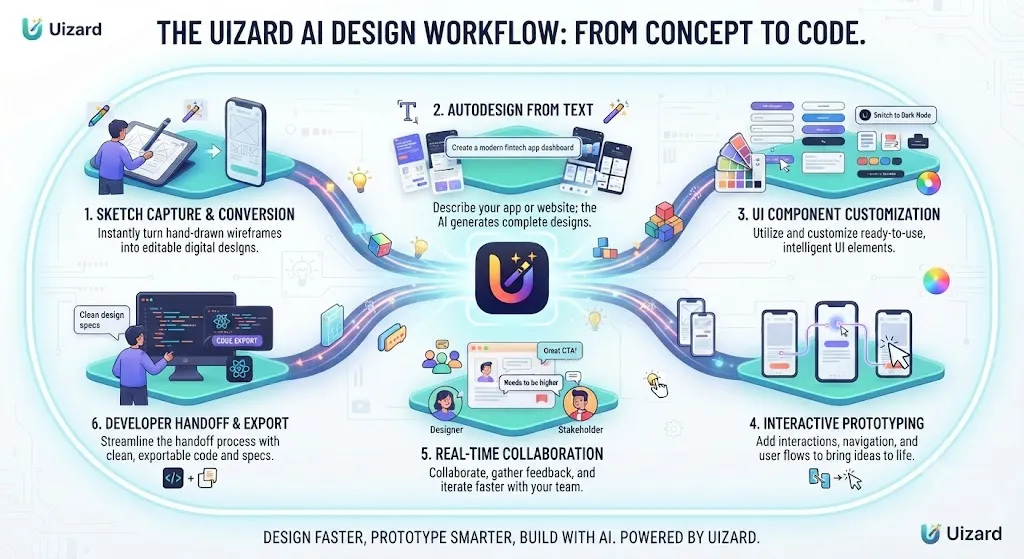
In this Uizard review, the starting point in a Uizard workflow is deliberately low-friction. You don’t need reference material, a design brief, or existing assets to begin. A text description is enough to generate a complete starting point. This is intentional: Uizard is designed to eliminate the blank canvas problem that blocks many non-designers at the start of a project.
Looking at Uizard review details, in practice, product managers report going from concept to first prototype in 15 minutes or less. The text prompt doesn’t need to be detailed or technically specified — “a project management app for small teams with a board view, task list, and team member section” is sufficient to generate a functional starting point.
Wireframing
When it comes to this tool, this Uizard review found that once AI generation produces a starting design, the wireframing workflow in Uizard follows a familiar pattern of review and refinement. You toggle between high-fidelity and wireframe views, adjust component placements in the drag-and-drop editor, add or remove screens, and use Autodesigner’s component-level iteration to make specific adjustments.
For anyone reading this Uizard review, the wireframe mode is particularly useful for early cross-functional alignment — showing engineering teams a structural representation without visual design choices that might distract from the layout and flow conversation.
This Uizard review found that one real limitation here: Uizard’s design editor is noticeably less capable than Figma for granular control. Text alignment, spacing precision, and component customization are all more limited. Most experienced design reviewers note that Uizard handles 80% of the prototyping work effectively, but finishing to a higher fidelity often requires moving to Figma or another professional tool.
Prototype Testing
Across this Uizard review, the final stage in the Uizard workflow is sharing interactive prototypes for feedback. Stakeholders receive a link to a clickable version of the design in their browser — no account required, no software to install. They can navigate through screens as if using the actual product, leave comments on specific elements, and provide structured feedback that’s organized by screen in the Uizard editor.
On this point, this Uizard review notes that developer handoff (Pro and Business plans) generates React and CSS code snippets for individual components, giving engineers a concrete reference for implementation. The code isn’t production-ready — it’s a reference scaffold rather than deployable output — but it’s significantly more useful than screenshots alone for bridging the design-to-development gap.
Love What These AI Design Tools Can Do?
Great AI-generated visuals still need a cohesive brand identity holding them together. Let Tasknestly build your full branding — logo, guidelines, and visual system.
Explore Branding Services →Pros and Cons
Advantages
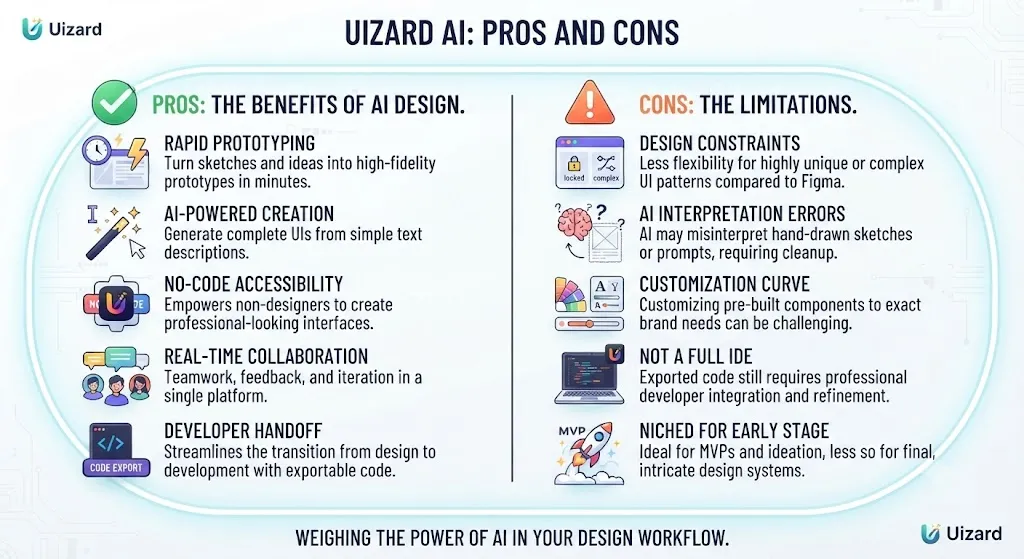
Speed from concept to prototype is genuinely impressive. Within this Uizard review, multiple independent tests confirm that non-designers can produce their first clickable prototype within 15 minutes of creating an account. For teams that need to move quickly from idea to visual representation, no other tool in this price range matches that speed.
AI cuts design iteration cycles significantly. Considering the data, this Uizard review shows the AI automatically adapts designs for mobile and desktop, and the Autodesigner 2.0 engine reduces design iteration cycles by over 50% compared to manual construction according to user data from 2026. For teams doing rapid product validation, that time savings compounds across multiple iteration rounds.
Screenshot-to-design is a powerful competitive analysis tool. In the context of pricing, this Uizard review notes the ability to upload any existing app screenshot and receive an editable design file is practically unique at this price point. Competitive analysis, reference design extraction, and inspiration-to-prototype conversion all happen in seconds.
Minimal learning curve for non-designers. Per this Uizard review, the interface is accessible to people with no design background. Product managers, marketers, and founders who have never used a design tool can produce professional-looking prototypes without tutorials or training.
Collaboration model is well-suited to product teams. As this Uizard review shows, unlimited free viewers and commenters, pinned comments on specific elements, and link-sharable prototypes make stakeholder collaboration smooth without requiring everyone to have a paid seat.
Miro Labs acquisition has accelerated development. In this Uizard review, since the 2024 acquisition, Uizard has seen significant capability expansion. Autodesigner 2.0, improved scanner accuracy, and better design system features have all shipped post-acquisition, and the roadmap reflects continued investment.
Pricing is very competitive. Looking at Uizard review details, at $12/month for Pro and $39/month for Business, Uizard is one of the most affordable professional prototyping tools available. For startups and small teams, the cost-to-value ratio is strong.
Disadvantages
AI output has a recognizable generic quality. When it comes to this tool, this Uizard review found that every Uizard-generated screen looks AI-generated. The components are functional and clean, but they lack the visual distinctiveness and craft of professionally designed UI. For client presentations or investor demos where design polish matters, the generic quality of AI output is a real limitation.
500 AI generation cap on Pro runs out fast. For anyone reading this Uizard review, heavy iterators burn through the 500 monthly AI generations on the Pro plan quickly. Teams doing intense daily prototyping may find themselves upgrading to Business ($39/month) sooner than expected, or managing generation usage carefully.
Free plan is severely limited. This Uizard review found that three AI generations per month and only two projects with five screens each makes the free plan genuinely useful only for evaluation, not for actual work. Unlike Coolors or Khroma where the free tier is practically useful, Uizard’s free plan is closer to an extended trial.
Editor is not pixel-perfect. Across this Uizard review, uizard lacks the precise control of Figma for alignment, spacing, and component customization. For designs requiring exacting visual precision, you’ll hit the editor’s limits and need to finish in a professional tool.
AI generation consistency breaks down at scale. On this point, this Uizard review notes that for medium-to-large projects with many interconnected screens, the AI can produce inconsistent layouts, component styles that drift across screens, and structural decisions that don’t hold up across a full app flow. Users working on complex products report needing significant manual cleanup.
No offline functionality. Within this Uizard review, uizard is entirely browser-based. No internet connection means no access to your projects or any generation capability.
Export options are restricted on free plan. Considering the data, this Uizard review shows the free tier adds Uizard branding to exports. Clean, branded exports and SVG format require the Pro plan or above.
Love What These AI Design Tools Can Do?
Great AI-generated visuals still need a cohesive brand identity holding them together. Let Tasknestly build your full branding — logo, guidelines, and visual system.
Explore Branding Services →Pricing Plans
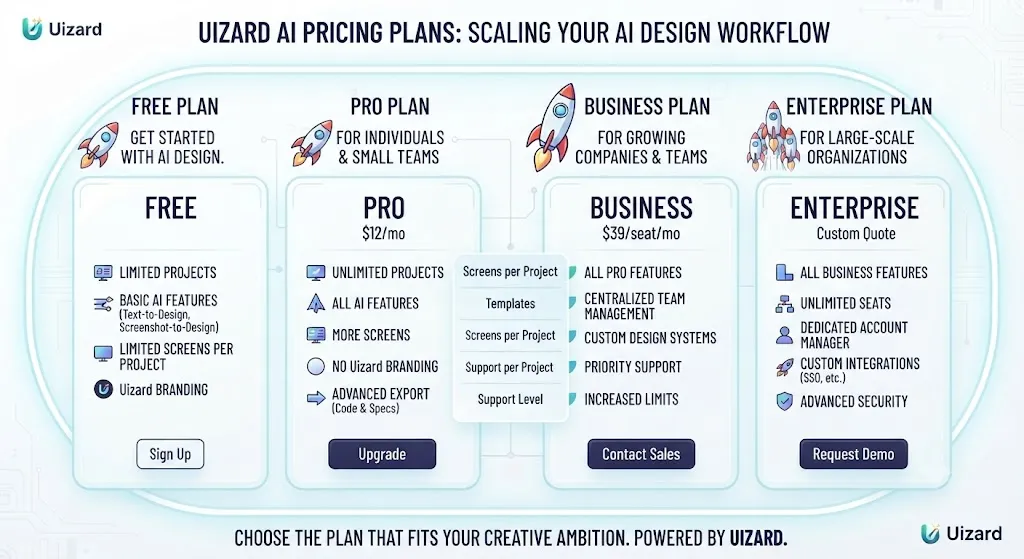
Free Plan — $0/month
- 2 projects
- 5 screens per project
- 3 AI generations per month (Autodesigner 1.5)
- 10 templates
- Unlimited viewers and commenters
- Uizard branding on exports
In the context of pricing, this Uizard review notes the free plan is best understood as an evaluation tier. It’s useful for testing whether Uizard fits your workflow before committing to a paid plan, but the project and AI generation limits make it impractical for real ongoing work.
Pro Plan — $12/month (billed annually) / $19/month (monthly)
- 100 projects
- Unlimited screens
- 500 AI generations per month (Autodesigner 2.0)
- Wireframe mode
- Team asset libraries
- Developer handoff (React and CSS snippets)
- SVG export
- No Uizard branding
Per this Uizard review, pro is where most individual users and small teams will land. The jump from Autodesigner 1.5 to 2.0 alone is worth the upgrade cost for anyone doing regular prototyping work. The 500 monthly AI generations are sufficient for moderate use; heavy iterators should monitor usage.
Business Plan — $39/month (billed annually) / $49/month (monthly)
- Unlimited projects
- 5,000 AI generations per month
- Faster AI processing
- Custom brand kit
- Priority support
- Private projects
As this Uizard review shows, business is designed for agencies, larger product teams, and power users who need high-volume AI generation, custom brand consistency, and privacy controls. The 5,000 monthly generation cap is sufficient for even intensive daily use.
Enterprise Plan — Custom pricing
In this Uizard review, custom pricing for large organizations requiring design system setup, SSO, dedicated account support, and tailored solutions.
Love What These AI Design Tools Can Do?
Great AI-generated visuals still need a cohesive brand identity holding them together. Let Tasknestly build your full branding — logo, guidelines, and visual system.
Explore Branding Services →Alternatives
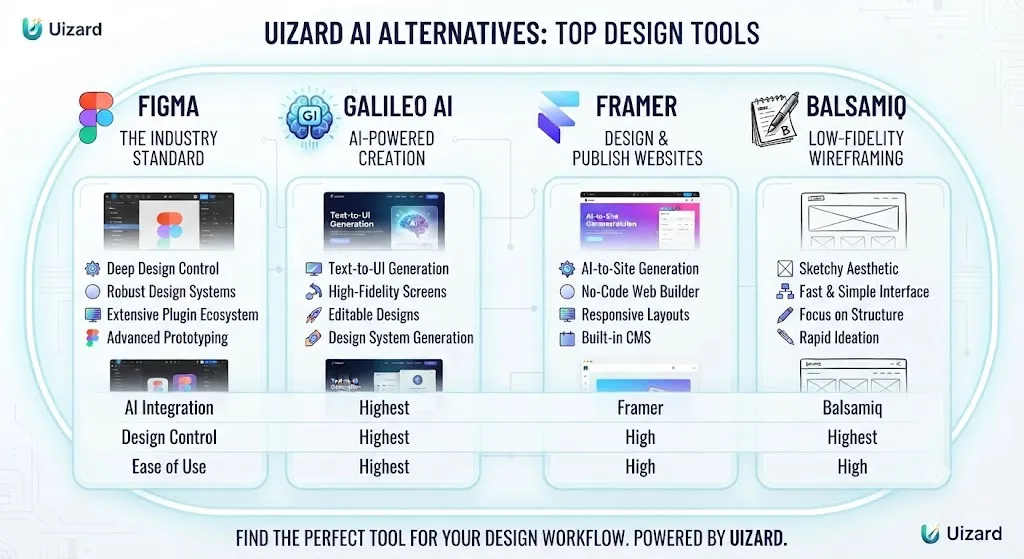
Figma AI
Figma is the professional standard for UI/UX design and has been building AI capabilities into its platform over the past two years. Figma AI can generate designs from prompts, auto-layout components, and suggest design improvements — but it’s built on top of a full professional design environment with a steeper learning curve. That’s a key point in this Uizard review.
The honest comparison: Figma is the better tool for professional designers doing production-quality work. Uizard is the better tool for non-designers who need to produce prototypes quickly without investment in learning a complex design environment. Most professionals who evaluate both tools use Figma as their primary production tool and Uizard (or similar) for rapid early-stage ideation and stakeholder alignment. This holds up throughout the Uizard review.
Figma’s pricing starts at free for individuals, with team plans starting at $15/person/month — more expensive than Uizard Pro for teams. Keep that in mind from this Uizard review.
Framer AI
Framer is a design-and-publish platform that bridges the gap between design tool and website builder. You design in Framer and publish directly to a live, responsive website without a separate development step. Its AI features can generate landing pages and UI sections from prompts. That’s a key point in this Uizard review.
Framer is a stronger choice than Uizard for teams building websites that need to go live quickly. It’s a weaker choice for mobile app prototyping, for non-designers, and for teams that don’t need or want the publish-to-web capability. The learning curve is steeper than Uizard’s. This holds up throughout the Uizard review.
Best for: teams designing and publishing responsive websites with interactive animations. Not a substitute for Uizard’s rapid app prototyping use case. Keep that in mind from this Uizard review.
Mockplus
Mockplus is a specialized prototyping and design collaboration tool targeting product teams and enterprises. It offers stronger prototyping interaction capabilities than Uizard — more complex interaction states, conditional flows, and animation controls — along with enterprise-grade collaboration and handoff features.
Mockplus is the better choice for teams that have outgrown Uizard’s prototyping capabilities but don’t need the full complexity of Figma. Its AI features are less prominent than Uizard’s, so the tradeoff is deeper prototyping functionality vs. faster AI generation.
Love What These AI Design Tools Can Do?
Great AI-generated visuals still need a cohesive brand identity holding them together. Let Tasknestly build your full branding — logo, guidelines, and visual system.
Explore Branding Services →Final Verdict
Is Uizard Worth It?
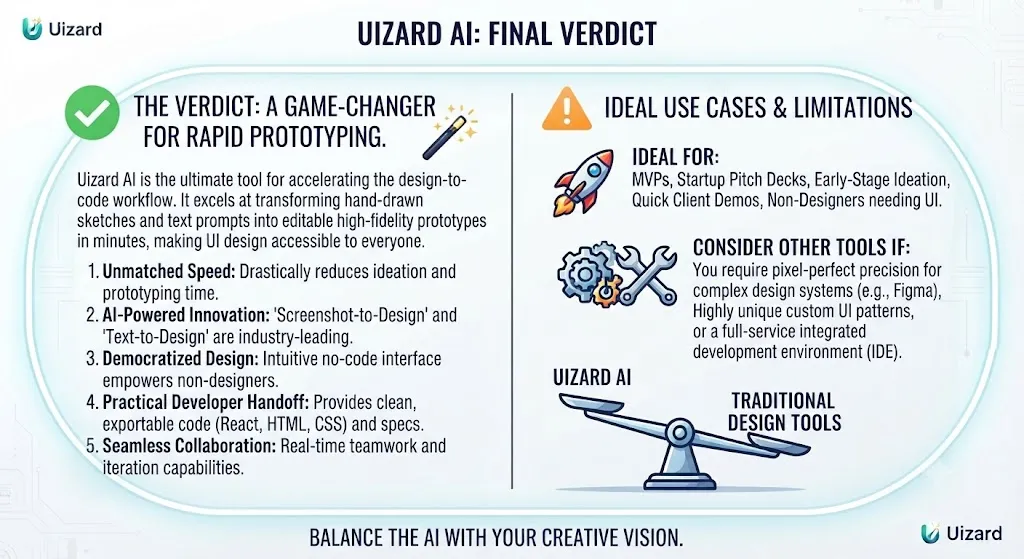
For its target audience — non-designers, product managers, startup founders, and marketers who need to visualize UI concepts quickly — yes, Uizard is absolutely worth using in 2026. It delivers on its core promise: going from a text description or sketch to a clickable, shareable prototype in minutes, at a price point that doesn’t require budget approval.
The limitations are real and important to name clearly: the AI output has a generic quality, the editor lacks professional precision, and the free plan is too restricted for real work. But none of these limitations undermine the tool’s core value proposition for its actual target users. Non-designers aren’t going to Uizard expecting Figma-level control — they’re going for speed and accessibility, and Uizard delivers both.
For professional designers, Uizard is a useful addition to an early-stage workflow for rapid ideation and non-designer collaboration, but it won’t replace Figma or Sketch for production work.
One experienced designer’s assessment from 2026 testing captures the reality well: you’ll handle 80% of the work in Uizard, then export and finish in Figma. That two-tool workflow is the honest answer for professional use cases.
Best Users
Uizard Pro is the right choice if you are:
- A product manager who needs to communicate UI concepts to engineering and stakeholders without waiting for a designer
- A startup founder validating product ideas and building investor demo materials quickly
- A marketer who needs landing page mockups, feature previews, or campaign visuals without design resources
- A non-designer at any level who needs to produce and iterate on UI concepts independently
- A small team doing rapid MVP development who needs to move from idea to visual fast
Consider alternatives if you are:
- A professional designer doing production-quality UI work → Figma
- A team that needs to publish live responsive websites from design → Framer
- A team needing complex interaction states and advanced prototype logic → Mockplus or UXPin
- A developer who needs production-ready code output → Lovable
Love What These AI Design Tools Can Do?
Great AI-generated visuals still need a cohesive brand identity holding them together. Let Tasknestly build your full branding — logo, guidelines, and visual system.
Explore Branding Services →Pricing Summary
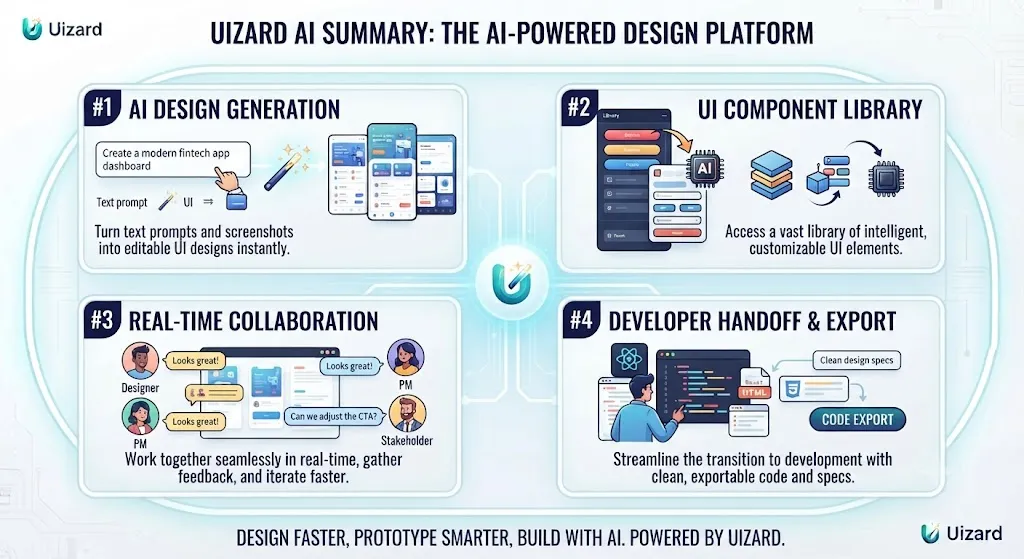
| Plan | Price | AI Generations | Projects | Key Features |
|---|---|---|---|---|
| Free | $0/month | 3/month (v1.5) | 2 (5 screens each) | Basic templates, unlimited viewers |
| Pro | $12/month* | 500/month (v2.0) | 100 | Wireframe mode, dev handoff, SVG export |
| Business | $39/month* | 5,000/month | Unlimited | Brand kit, faster AI, private projects |
| Enterprise | Custom | Custom | Unlimited | SSO, design system setup, dedicated support |
*Billed annually. Monthly billing is higher.
Uizard has earned a clear, specific position in the 2026 design tool landscape: the fastest, most accessible way for non-designers to go from concept to clickable prototype. The Autodesigner 2.0 upgrade, the screenshot-to-design scanner, and the Miro Labs-backed product investment have made it meaningfully better than it was two years ago. At $12/month for the Pro plan, the barrier to entry is low enough that any product team struggling with design bottlenecks should try it.
It won’t replace your professional design stack. But for the ideation and stakeholder alignment stages of the product process — the stages that often slow everything else down — nothing does the job faster or more accessibly than Uizard.
Rating: 8.0/10
Best for: Non-designers, product managers, and startup founders who need to go from concept to clickable prototype in minutes without design expertise.
Price: Free — $12/month Pro — $39/month Business
Love What These AI Design Tools Can Do?
Great AI-generated visuals still need a cohesive brand identity holding them together. Let Tasknestly build your full branding — logo, guidelines, and visual system.
Explore Branding Services →